Documentation Index
Fetch the complete documentation index at: https://www.thundercompute.com/docs/llms.txt
Use this file to discover all available pages before exploring further.
VS Code
Editor extension
CLI
Command line
Console
Web interface
Agents
MCP server
Sign Up
Navigate to the Thunder Compute console and create an account with your email. After signing in, the console opens to Active Instances, where you can create and manage GPU instances.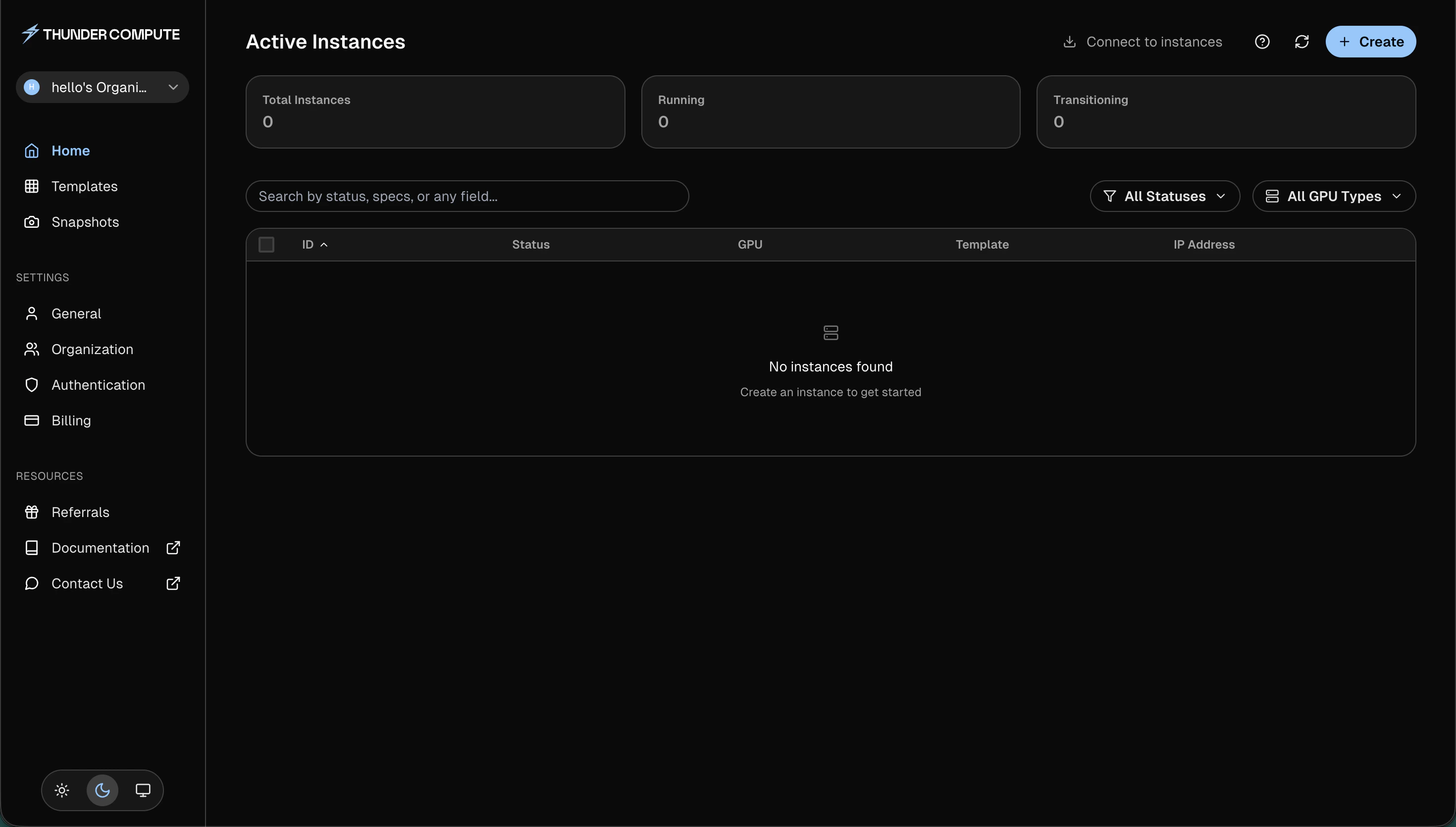
Add a Payment Method
In the console, add a payment method to your account.Create an Instance
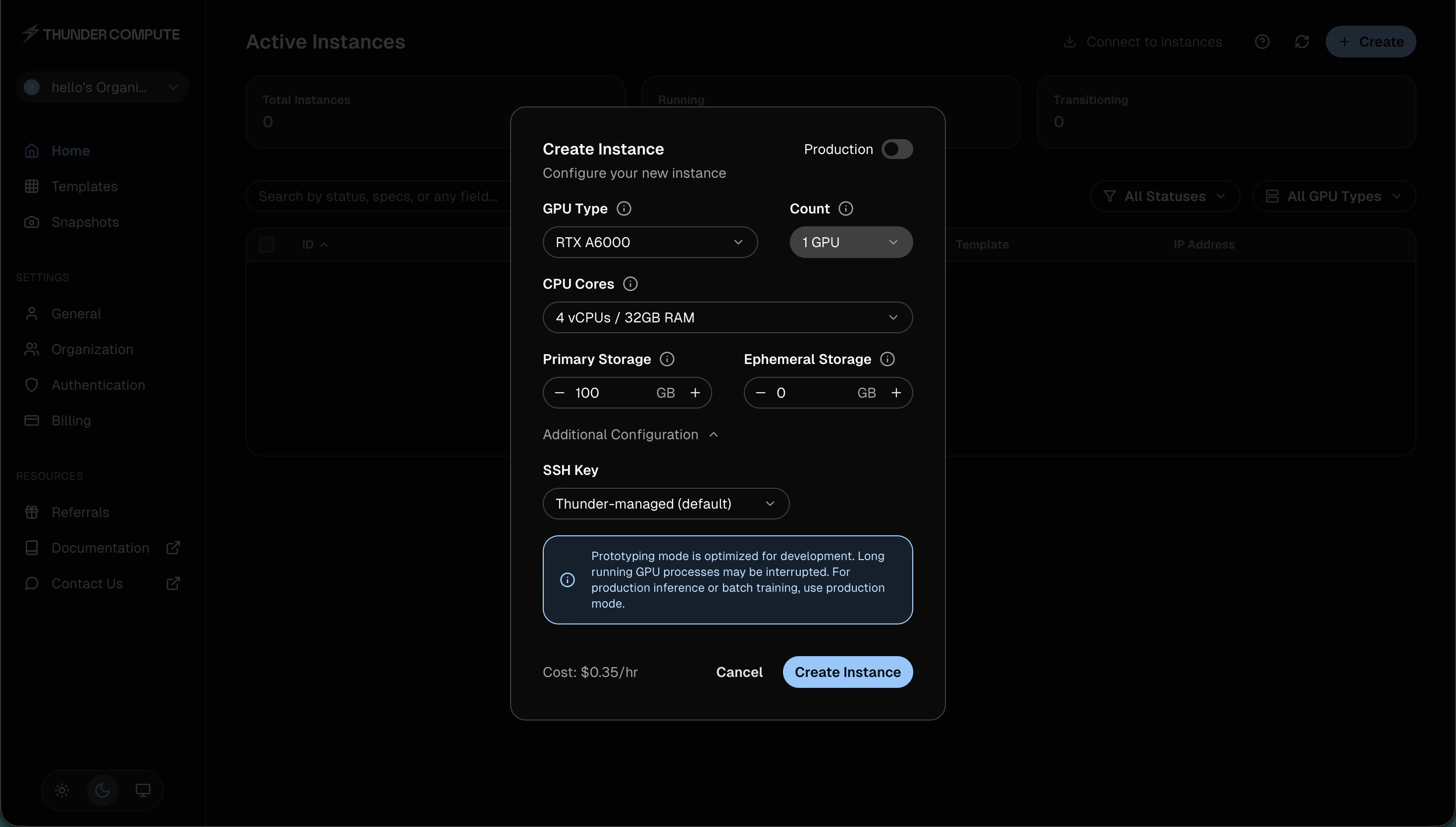
- Click Create on the dashboard
- Choose Prototyping or Production
- Select a GPU type, GPU count, CPU/RAM, and storage
- Under Additional Configuration, choose an SSH key. Thunder-managed (default) is the fastest way to get started
- Click Create Instance
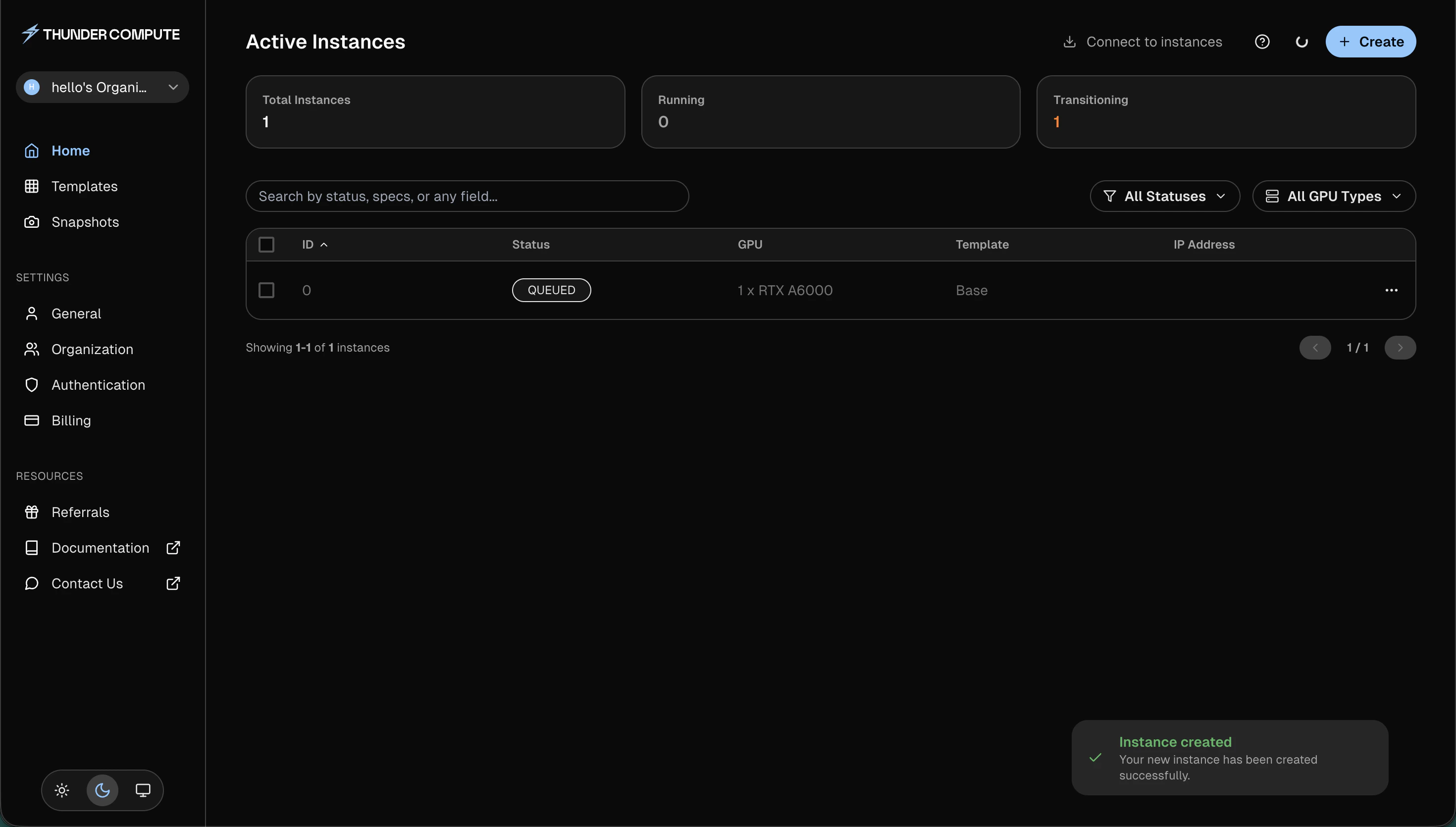
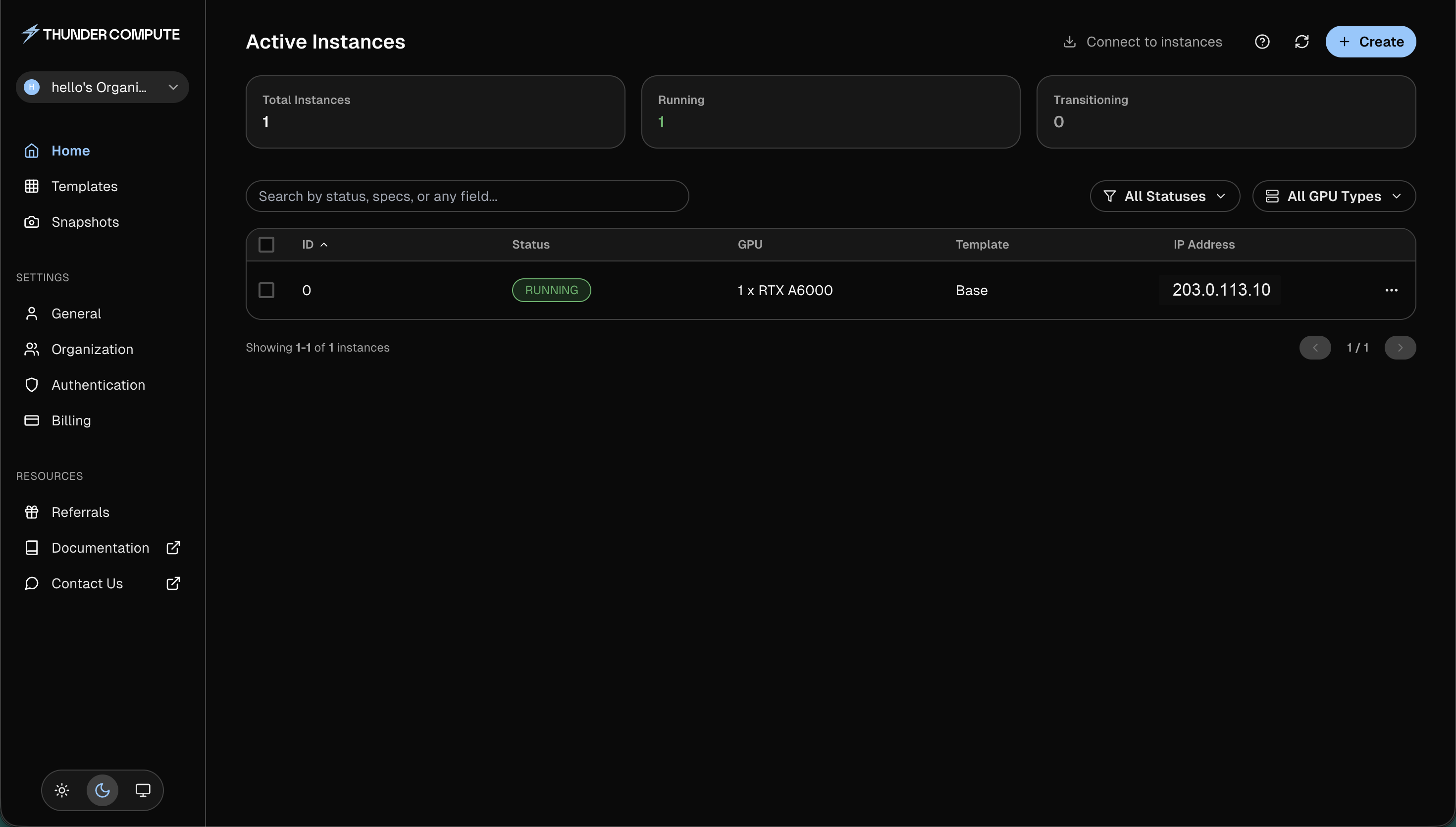
The screenshot uses a documentation IP address. Your console will show the IP address assigned to your instance.
Connect to Your Instance
Click Connect to instances and choose the connection method for your workflow.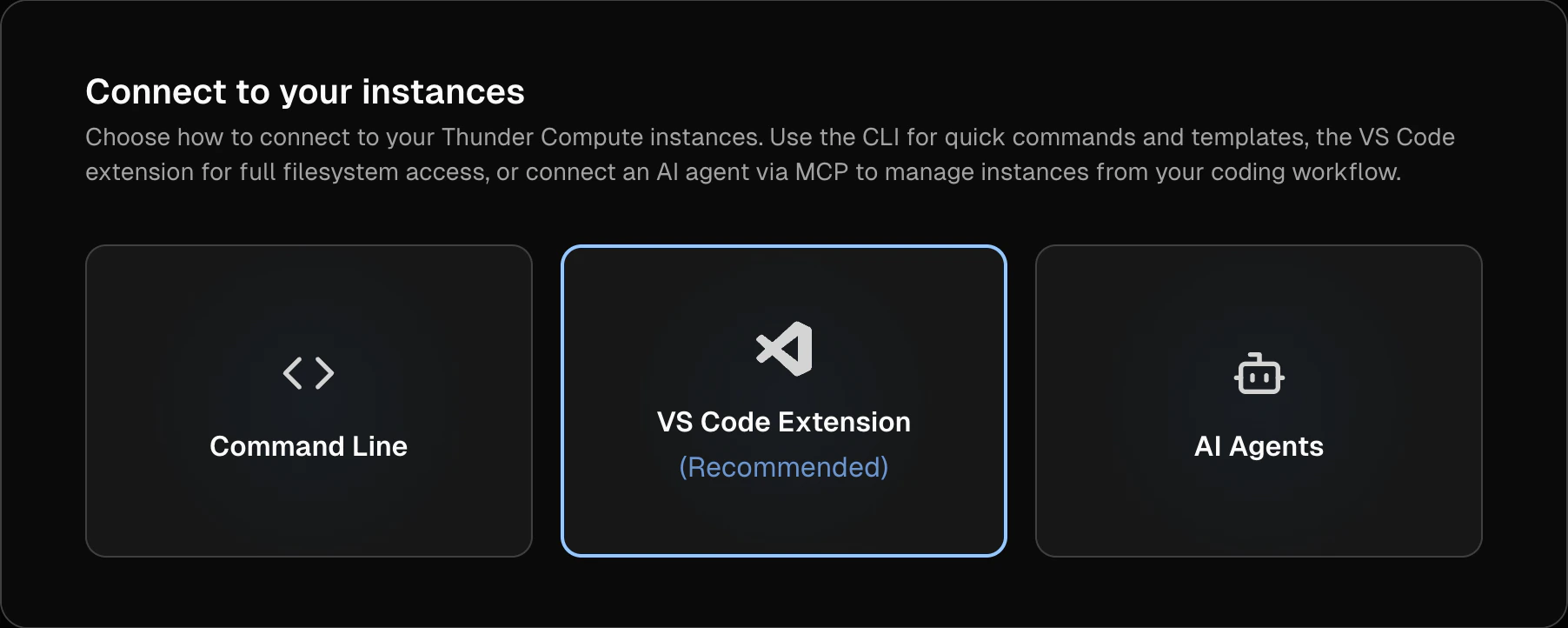
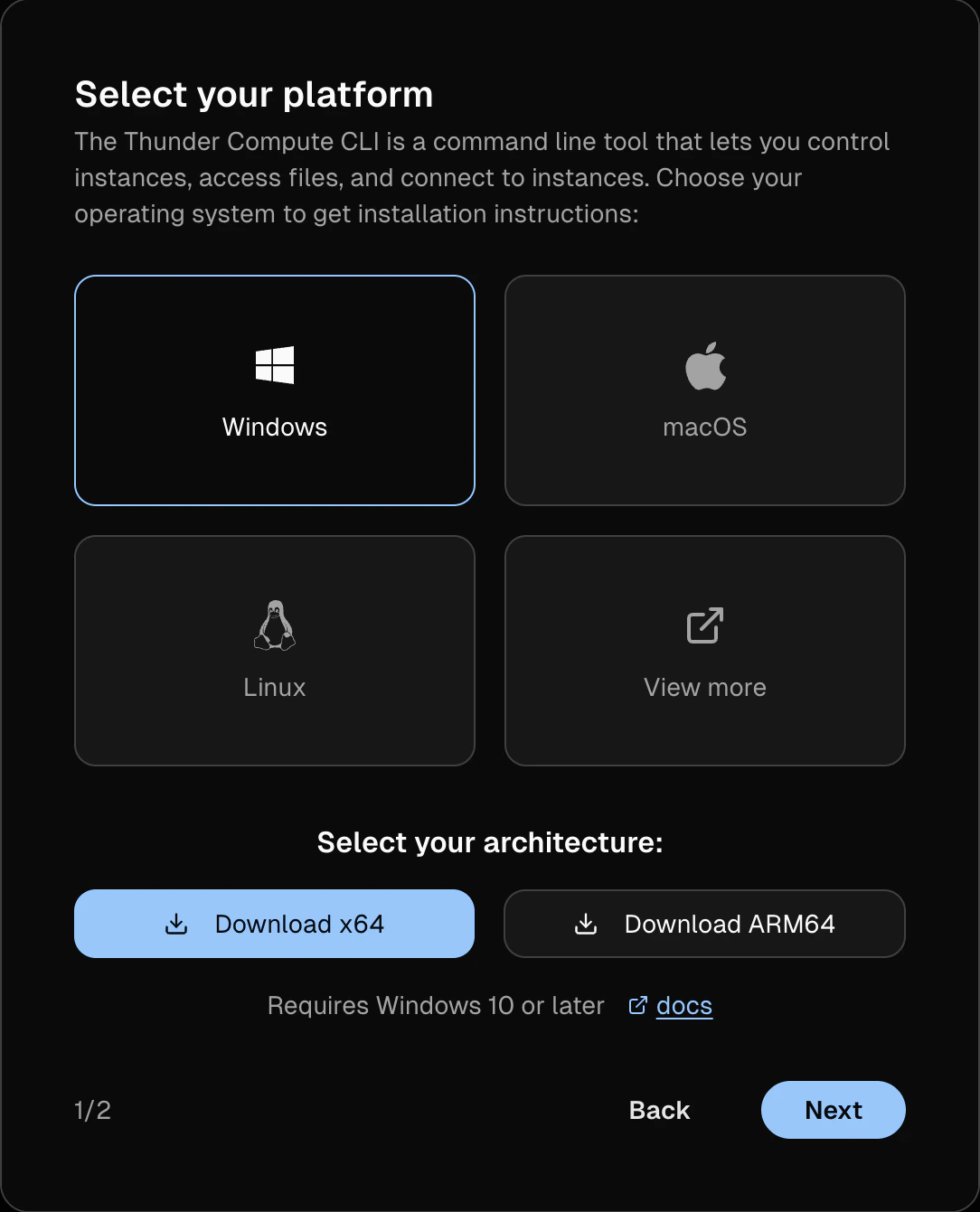
Connect via CLI
Single command SSH access
Connect via VS Code
One-click remote development
Clean Up
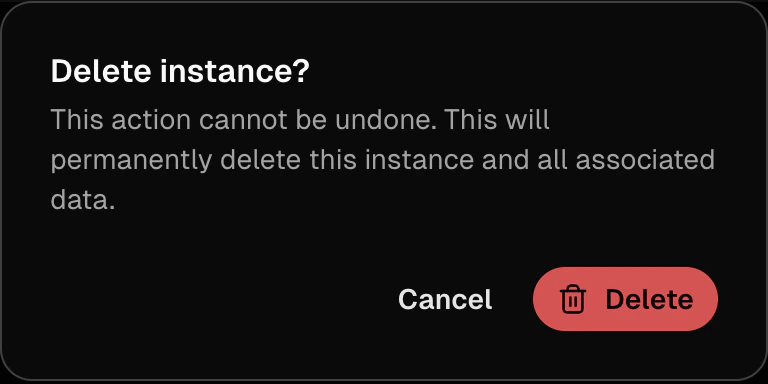
When you are done, open the instance menu, click Delete, and confirm the deletion.